
A week ago, I put together a quick tech demo, showing how an MCP server could be created for Claude Code that hooked directly into Gutenberg’s Collaborative Editing feature, allowing it to act as a digital collaborator on a post. The demo focused primarily on text generation, but that’s not really the benefit that I see coming with this kind of tool. Anyone can generate text, then copy/paste it into the editor. The real power comes from directly hooking into the entire post creation and editing process.
What’s New?
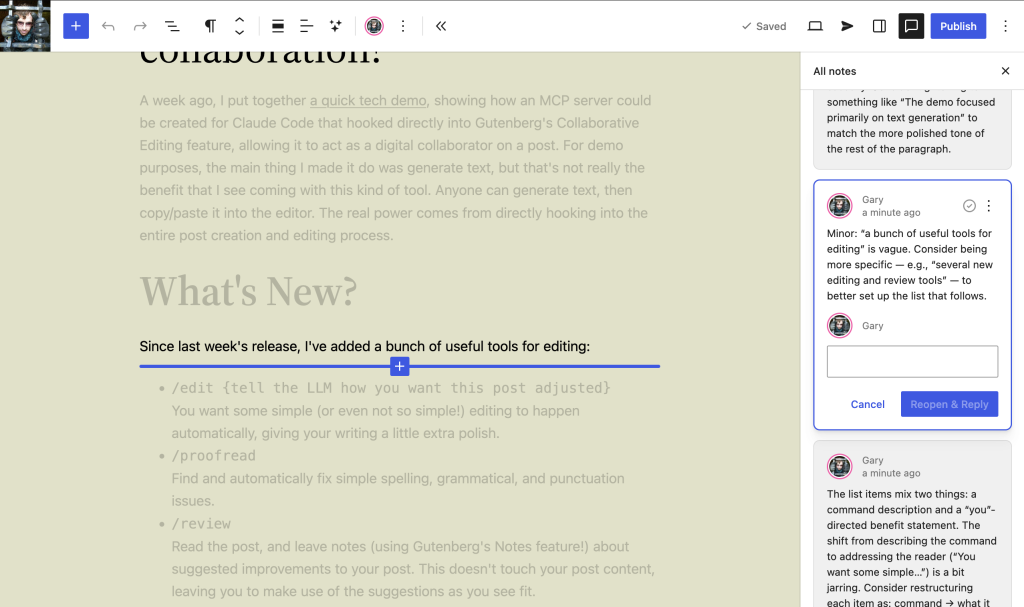
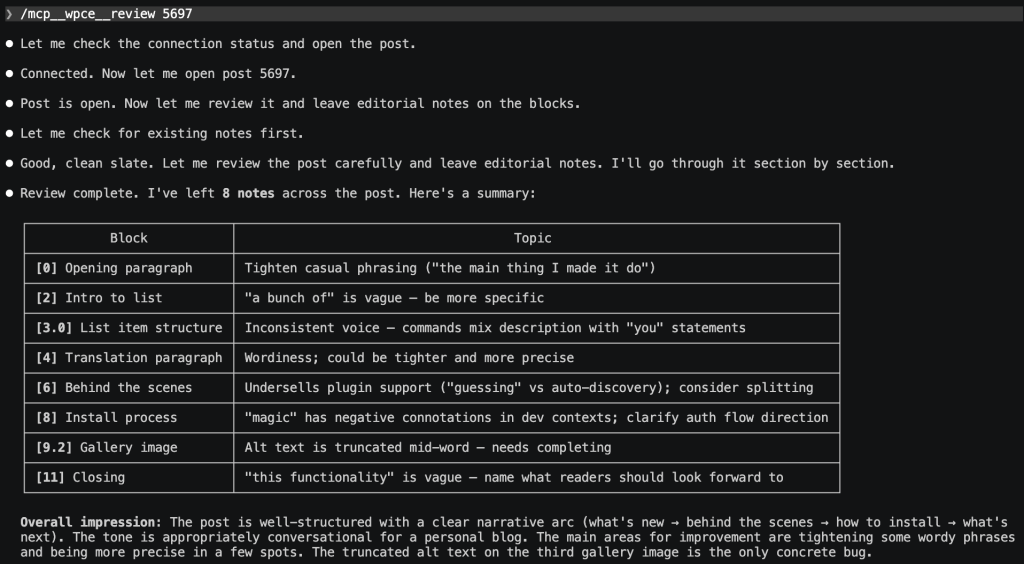
Since last week’s release, I’ve added a host of editing and review tools:
/edit {tell the LLM how you want this post adjusted}
Automatically make simple (or even not so simple!) edits on your post, giving your writing a little extra polish./proofread
Find and automatically fix simple spelling, grammatical, and punctuation issues./review
Read the post, and leave notes (using Gutenberg’s Notes feature!) about suggested improvements to your post. This doesn’t touch your post content, leaving you to make use of the suggestions as you see fit./respond-to-notes
If you’re happy with the notes left in the review, you can also have it automatically apply them, too!
On top of that, I’ve also added an experimental /translate tool, to automatically translate a post into a different language. LLM translation quality varies significantly, though Claude is regularly considered to be quite good. It’s worth remembering that, like any LLM, the output is only as good as its input. If you’re translating to a language that it didn’t have much training data on, it’ll do a lot worse.
Behind The Scenes
The MCP server now does a much better job of making use of the REST API, too: it now handles all block types (and does a pretty good job of guessing how to use blocks provided by plugins!). It can upload media, and it can handle all the post metadata, like categories, tags, excerpt, etc.
Getting It Running
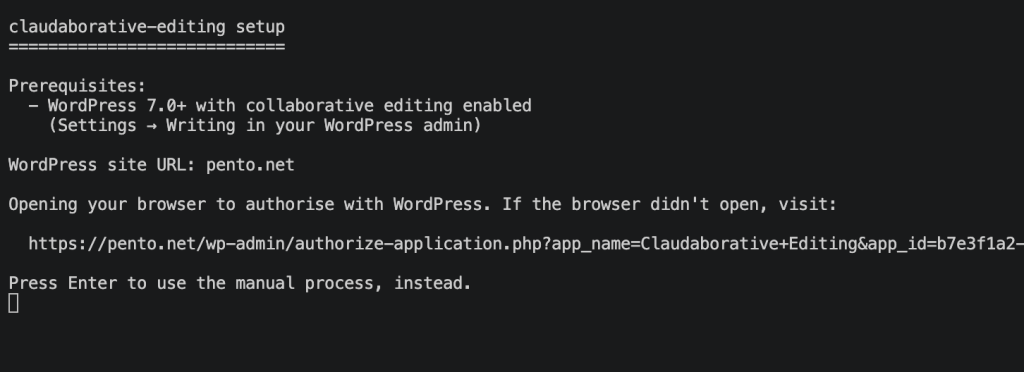
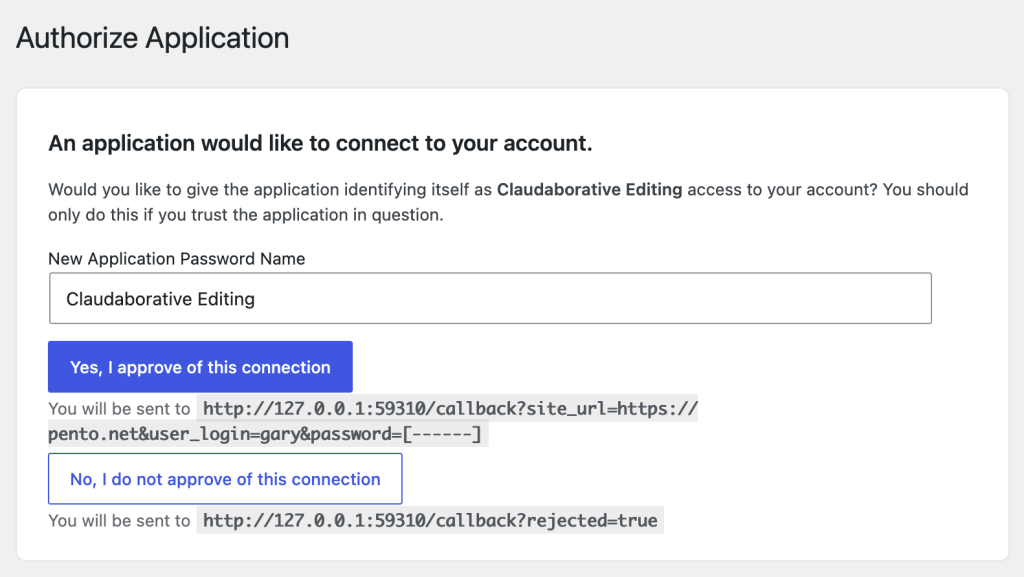
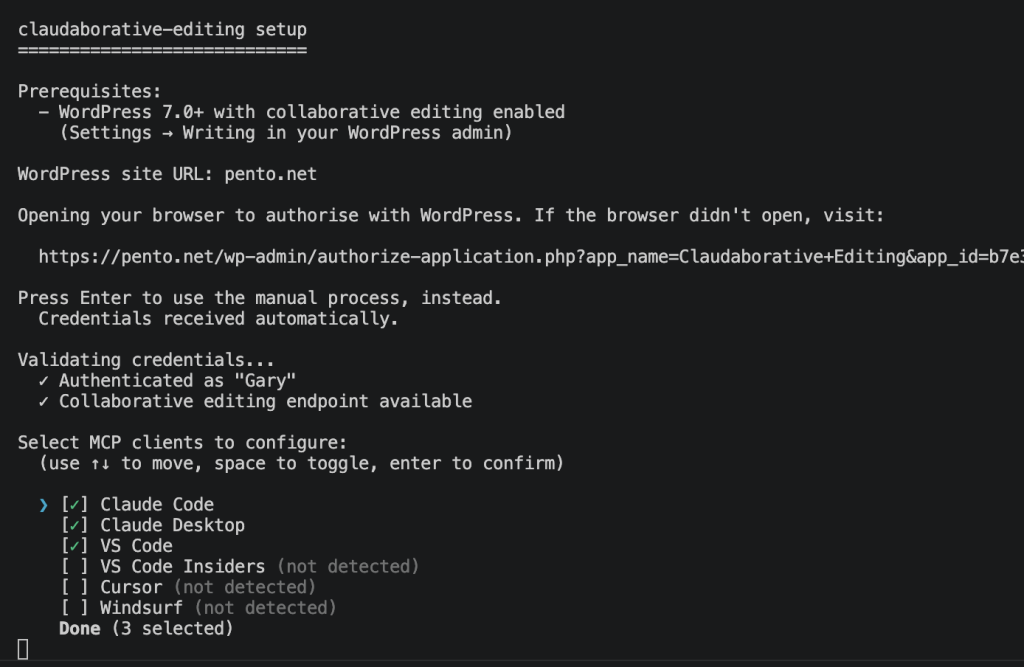
Inspired by the recently released WordPress.org MCP server, the install process got a refresh, too. If you’re running WordPress 7.0, you won’t even need to copy/paste the application password to connect to your site: just click the connect button in your browser, and your site will send credentials back to the installer! And if you’d prefer to avoid the magic, there’s still a --manual option to let you set it up the old-fashioned way.
What’s Next?
This release shows how easy it is for an LLM to talk to your WordPress site. What about the other way? If you’re working on a post, you don’t want to have to switch to a terminal to get spell checking done, so how can we provide this kind of functionality directly from the block editor? Let’s experiment and find out!